
AI Analysis Push
TrendRadar can connect to AI large language models to automatically analyze the trending topics it collects and generate an insight report attached to the push message. Once enabled, what you receive is no longer just a list of headlines, but an intelligence brief with in-depth analysis.
Three AI features at a glance
TrendRadar offers three independent AI features: Analysis (in-depth insight reports), Filtering (smart classification replacing keywords), and Translation (multilingual title translation). All three share the same
ai section for model configuration (api_key, model, etc.) and can be enabled in any combination without depending on each other. The Translation feature only translates news titles — it does not translate AI analysis report content.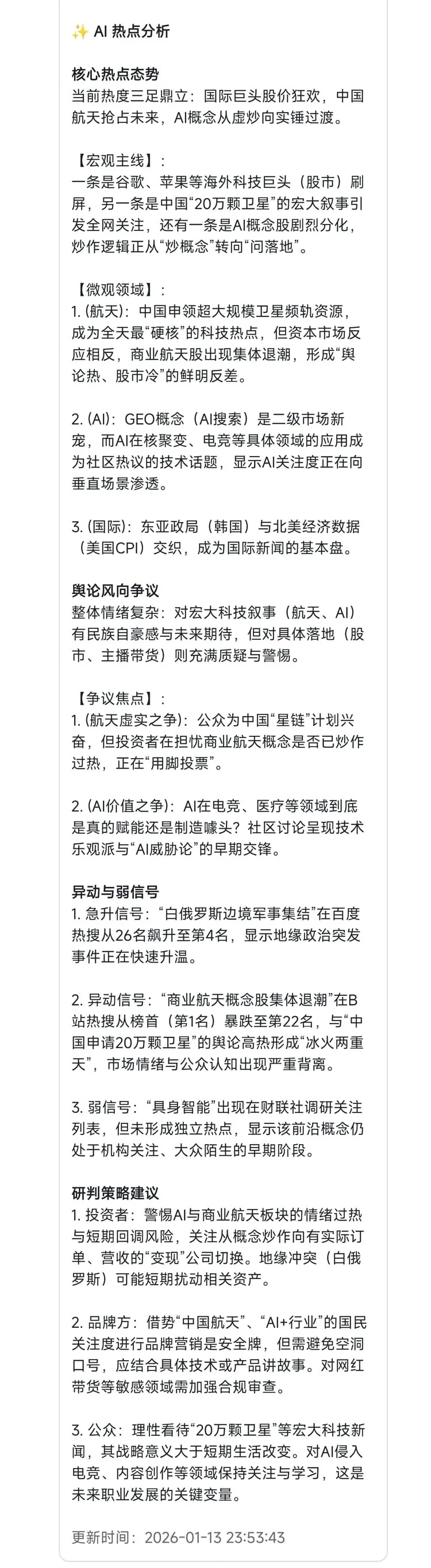
The five sections of AI analysis
The AI analyzes your trending topics in depth across the following five sections:
1. Core trends & sentiment landscape (
core_trends) : automatically reads every trending topic that matches your keywords and distills the topics drawing the most attention right now along with the overall sentiment landscape.2. Sentiment direction & controversy (
sentiment_controversy) : analyzes the emotional direction, the distribution of opinions, and the focal points of controversy in public discussion, helping you grasp where public sentiment is heading.3. Anomalies & weak signals (
signals) : surfaces unusual fluctuations and emerging weak signals, catching early signs of events that may grow into significant developments.4. RSS deep insights (
rss_insights) : performs in-depth analysis on RSS feed content, extracting valuable information and trends.5. Outlook & strategic recommendations (
outlook_strategy) : synthesizes an overall assessment of how trending events may develop and provides strategic recommendations and actionable suggestions.How to enable
Enabling AI analysis requires the following three mandatory settings. Start by checking the fields in
config/config.yaml. Docker and GitHub Actions can override them with environment variables; store API keys in GitHub Actions Secrets rather than committing them.Required configuration
The fragment below only shows where the fields belong. Edit the existing
ai and ai_analysis sections in config/config.yaml one field at a time:Do not paste this whole block, replace config.yaml, or add a second ai section
Keep every other setting in your existing config.yaml and change only the matching fields. Duplicate YAML sections, incorrect indentation, or replacing the entire file can disable configuration or prevent the application from starting.
ai:
  model: "openai/deepseek-v4-flash"
  api_key: "sk-xxxxxx"
  api_base: "https://api.deepseek.com"
  timeout: 120
  temperature: 1.0
  max_tokens: 5000
  num_retries: 1
  fallback_models: []

ai_analysis:
  enabled: true
  language: "Chinese"
Model identifier format
ai.model (or AI_MODEL) must contain a slash and use the provider-prefix/model-ID form. The prefix tells LiteLLM which protocol to use, while the model ID must exactly match what the provider or relay accepts—not merely a display name shown in its dashboard.Choose an integration mode first
Most relays—and many official model APIs—expose an OpenAI-compatible endpoint. Prefer the first mode: it requires only the exact model ID, API key, and API base URL, without first looking up a LiteLLM provider name. Use LiteLLM provider mode only when the compatible route does not work or a dedicated adapter is required.
| Integration mode | ai.model / AI_MODEL example | Notes |
|---|---|---|
| OpenAI-compatible API (recommended) | openai/<exact endpoint model ID> | Set api_base; works with most relays and official services that expose a compatible API |
| LiteLLM provider mode (fallback) | <provider prefix>/<model ID> | If the compatible route fails, look up the provider prefix in LiteLLM documentation |
| Ollama (local deployment) | ollama_chat/<local model name> | Set api_base; TrendRadar requires any non-empty placeholder api_key |
Integration configuration examples
The four tabs below cover common setup scenarios. The first two use DeepSeek to demonstrate cloud API patterns; local Ollama and deployment-time environment overrides are explained separately.
OpenAI-compatible API
LiteLLM provider mode
Local Ollama
Environment variables / Secrets
DeepSeek example
Prefixing the model ID with
openai/ forces LiteLLM to send an OpenAI Chat Completions request to api_base. The address and model ID below come from the official DeepSeek API documentation:ai:
model: "openai/deepseek-v4-flash"
api_key: "<DeepSeek API key>"
api_base: "https://api.deepseek.com"For a relay, replace only three values
Keep the
openai/ prefix and replace the model ID after it, the API key, and api_base with the values from the relay. Whether the base URL includes /v1 depends on that relay's documentation. DeepSeek's current Quick Start uses https://api.deepseek.com, while https://api.deepseek.com/v1 remains compatible; this guide follows the current official example. Never append /chat/completions to either base URL.Partner integration example
The following optional model service is provided by a project partner. It follows the same configuration rules described above, so choose it only when it fits your needs.
 Partner
Volcengine Ark supports both an OpenAI-compatible endpoint and LiteLLM provider mode. Both use an Ark API key:
The example uses Doubao Seed 2.1 Pro. You may replace it with another exact model ID from the console, such as
deepseek-v4-flash-260425, or with an Endpoint ID for a custom inference endpoint. Use an Ark API key, not an IAM Access Key / Secret Key pair.Two steps for first-time setup
Enable the model you need, then create and copy an Ark API key.
This integration guide is sponsored by Volcengine.Partnership details and offer
Optional configuration
The settings below all have sensible defaults and usually don't need to be changed. If you have special needs (for example using a proxy or adjusting the output length), set them as needed.
Optional settings
ai_analysis section settings
The following settings are configured in the
ai_analysis section of config.yaml, controlling the content and scope of the analysis report.Automatic model fallback (fallback_models)
You can configure a
fallback_models list in config.yaml. When a request to the primary model fails, the system tries the backup models in order. The current implementation shares the same api_key and api_base with every fallback. With a relay, for example, use ["openai/model-b", "openai/model-c"]. If fallbacks belong to different providers with different keys, route them through one compatible gateway first; a single shared TrendRadar configuration cannot supply a separate key for each provider.Push modes
Once AI analysis is enabled, you can choose what the push message contains:
both (news + AI analysis)
only_analysis (AI analysis only)
The push message contains both the news list and the AI analysis report. This is the default mode and suits most users.
push:
  mode: both    # news list + AI analysis report
Analysis modes
AI analysis supports four modes, each with a different analysis scope. In
timeline.yaml, every time period can set its own analysis mode independently — for example, incremental analysis in the morning and a full-day summary in the evening.# Set a different analysis mode per time period in timeline.yaml
periods:
morning:
start: "08:00"
end: "10:00"
analysis: incremental # morning: analyze new content only
evening:
start: "19:00"
end: "21:00"
analysis: daily # evening: recap the whole day's trendsCustomizing the analysis prompt
You can adjust the style and angle of the AI analysis by editing the prompt file. Edit
config/ai_analysis_prompt.txt to customize the AI's persona and analysis style.Debug mode
If the analysis results don't match your expectations, set
advanced.debug: true in config.yaml to enable debug mode. This lets you see the full prompt sent to the AI and the raw response, making it easier to troubleshoot.Cost note
AI analysis consumes API usage quota. With the DeepSeek model, a single analysis usually costs less than 0.01 CNY. If you're cost-sensitive, you can keep spending in check by reducing the analysis frequency (for example, enabling it only for the evening summary).